Setting up the Arrival Portal
Put a tablet by the door and let children check themselves in. You create a kiosk screen in the app, then pair the tablet to it — it takes a few minutes.
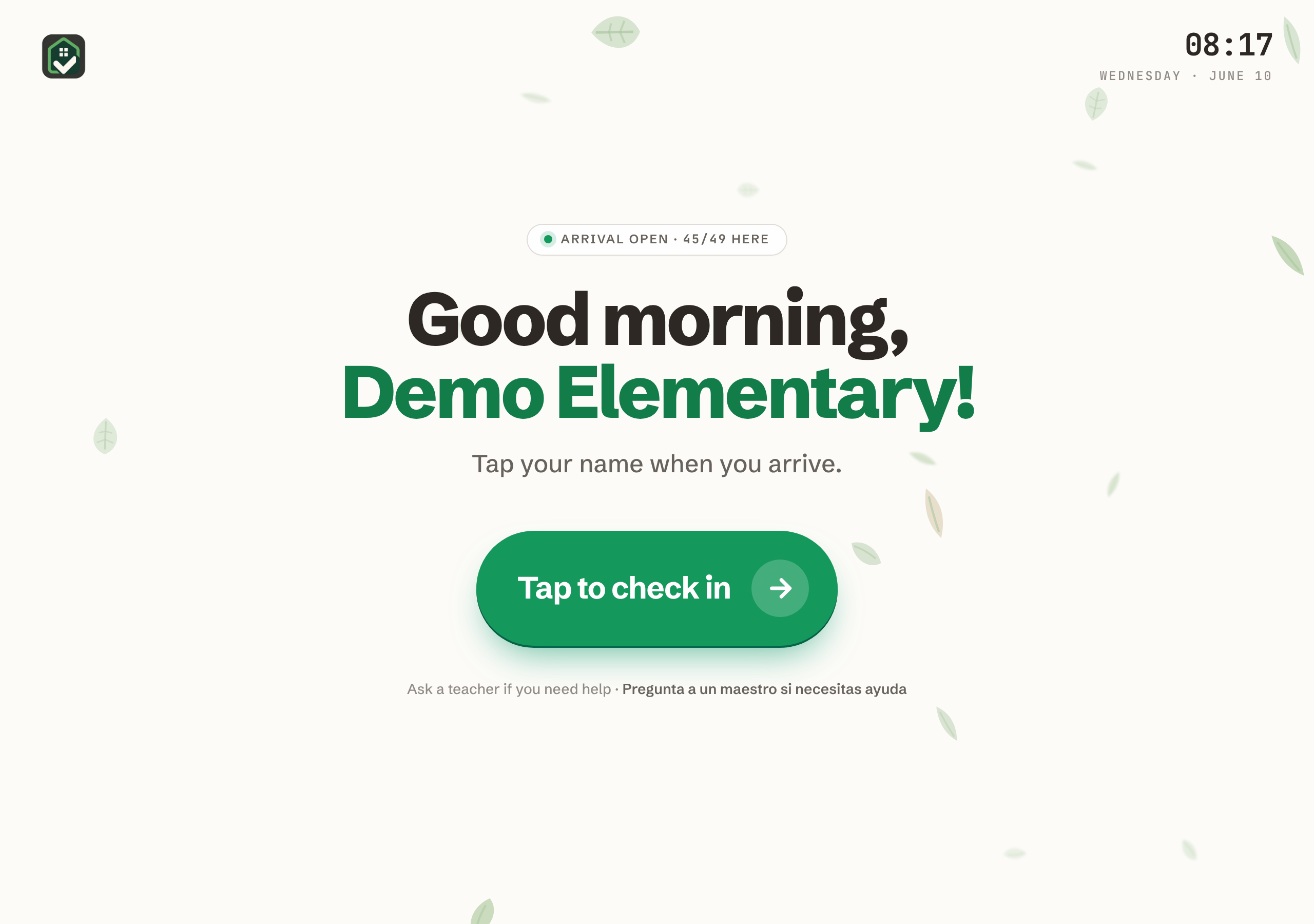
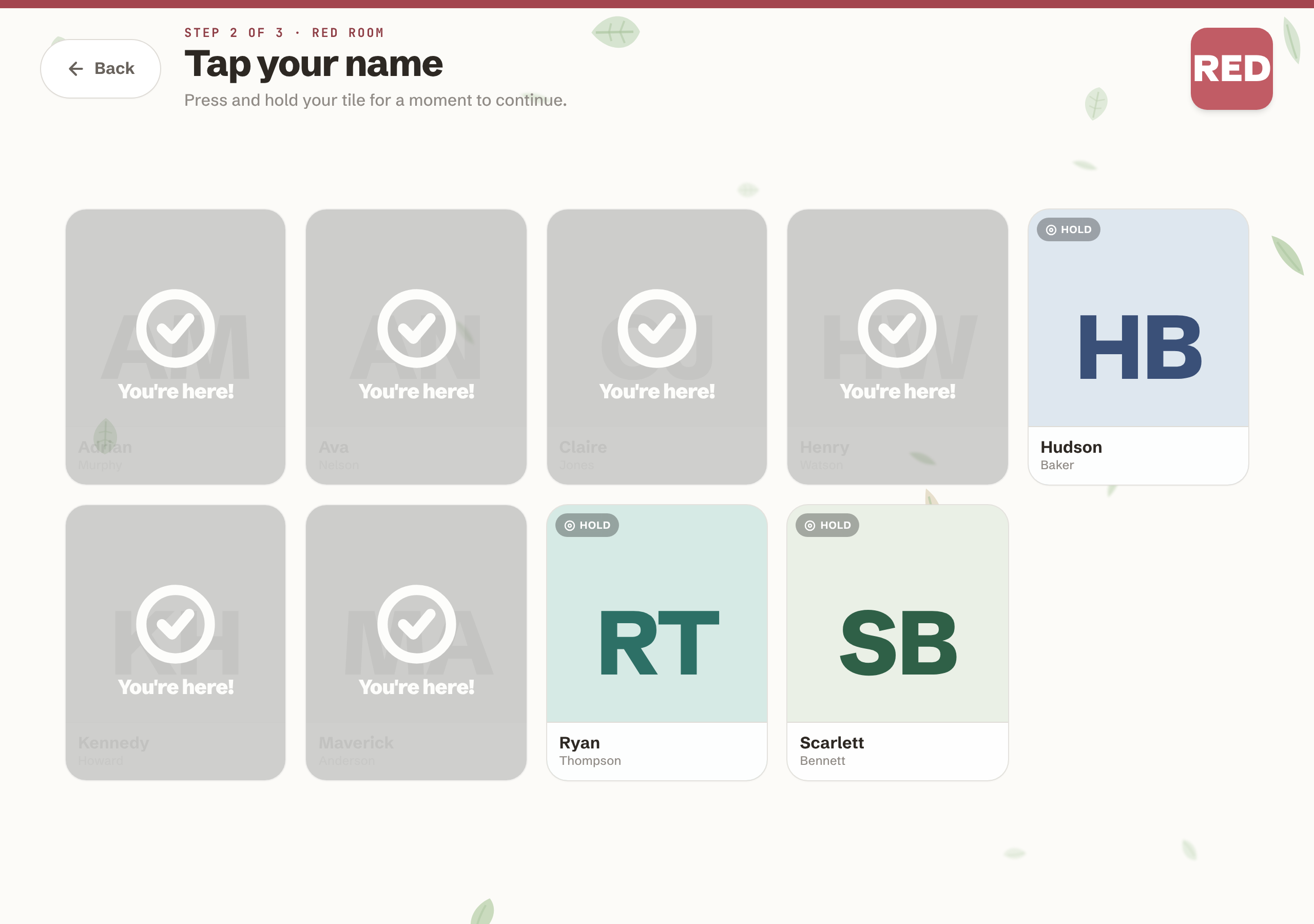
The Arrival Portal is a tablet that sits by the door. When children arrive, they tap their own name to check in — a small act of independence, and the register fills itself in. The office sees who's here on the Today screen without anyone working a clipboard.
What you'll need
- • A tablet (or any device with a web browser) to leave by the door — an iPad on a stand works well
- • Admin access to your Aqui Aca workspace, to create and pair the screen
- • A couple of minutes to set the greeting, dismissal options, and an exit PIN
Step 1 · Create a kiosk screen
A "screen" is one tablet at one door. Each has its own roster filter, dismissal options, and exit PIN, so a front-door tablet and a back-door tablet can behave differently.
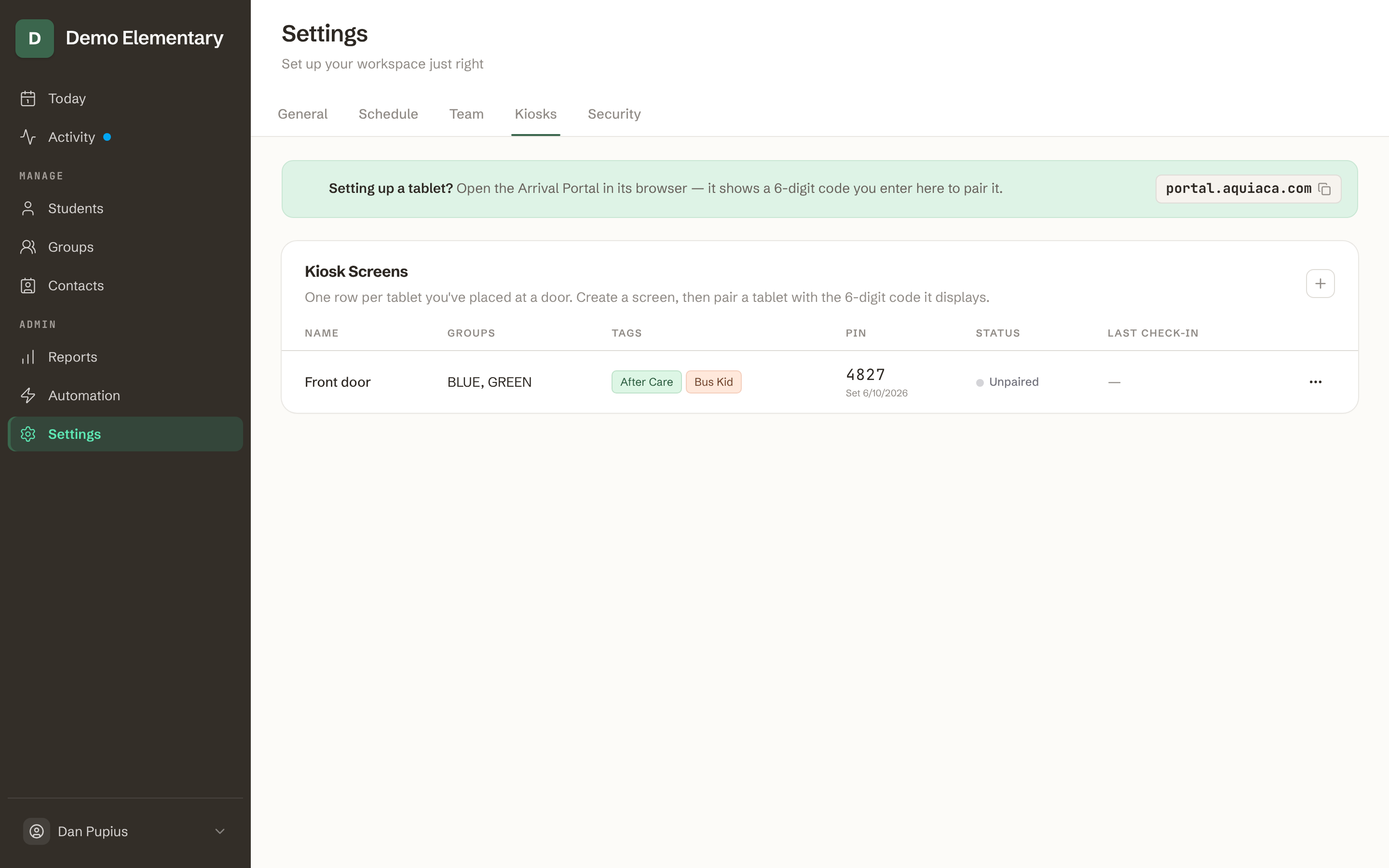
- • In the app, open Settings and choose the Kiosks tab
- • On the Kiosk Screens card, click Add
- • Give it a Name (e.g. “Front door”) so you can tell your tablets apart
- • Optionally pick Allowed groups, Dismissal tags, and Greetings (see “Configuring the screen” below)
- • Set an Exit PIN (4–8 digits) and confirm it — staff enter this to leave the arrival screen on the tablet
- • Click Create kiosk screen — the new screen appears in the table with an Unpaired badge
Step 2 · Open the portal on the tablet
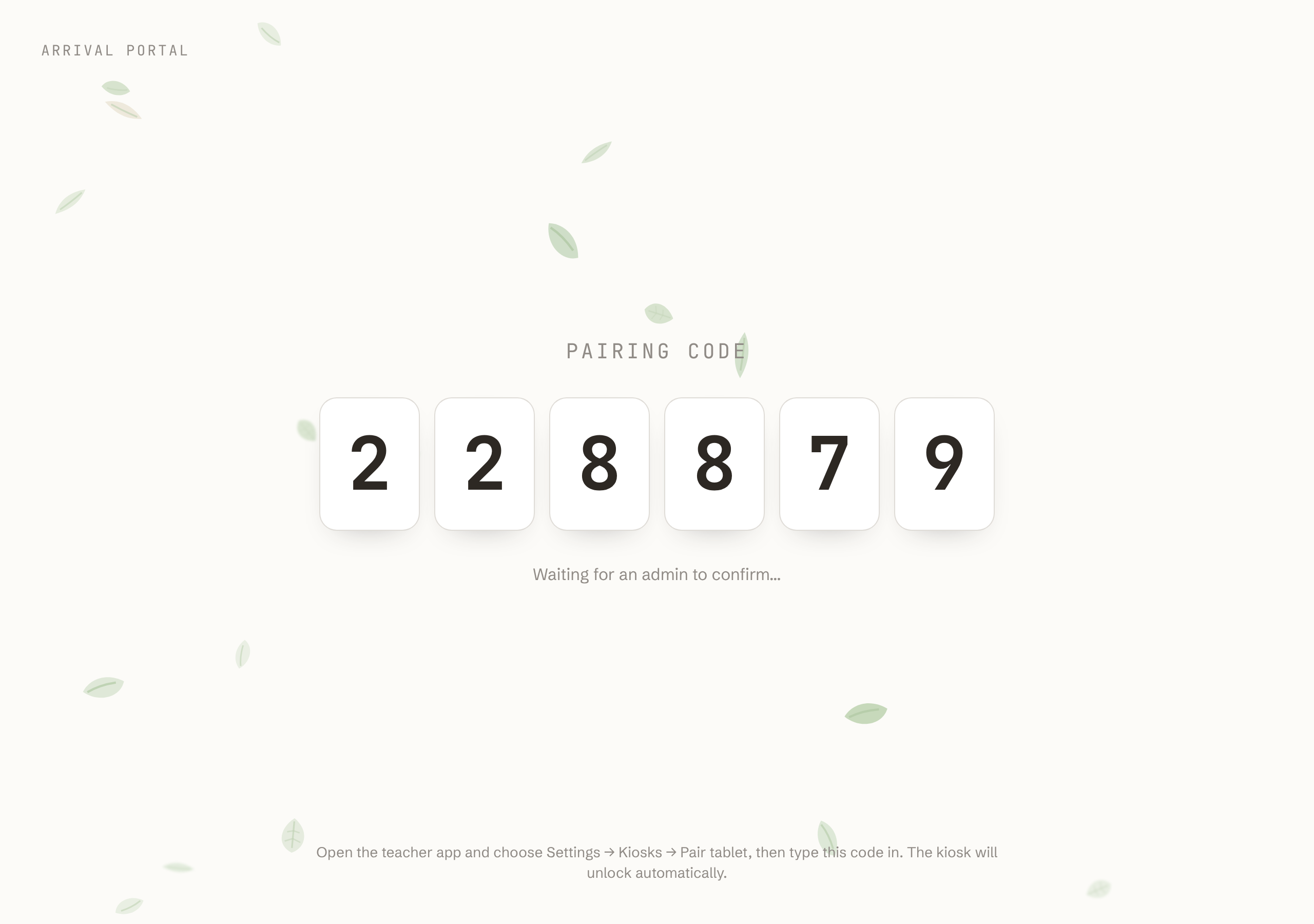
On the tablet you want to install, open portal.aquiaca.com in the browser. With no screen paired yet, it shows the Arrival Portal pairing screen and a 6-digit code, waiting for you to confirm it from the app.
Add it to the home screen
Once paired, use your tablet's “Add to Home Screen” option to launch the portal full-screen, so children see the kiosk and not the browser bars.
Step 3 · Pair the tablet from the app
Back in Settings → Kiosks, find the screen you created and pair it using the code on the tablet:
- • Open the screen row’s ⋯ actions menu and choose Pair tablet
- • Type the 6-digit code shown on the tablet into the Pairing code field (it only uses digits 2–9 — there’s no 0 or 1)
- • Click Pair tablet
The tablet detects the pairing within a few seconds, shows “Paired — opening kiosk…”, and drops into the home screen. In the app, the row's status flips from Unpaired to Live. That's it — children can start checking themselves in.
The code is shown on the tablet, typed in the app
Pairing always runs one direction: the tablet displays the code, and you type it into the app for the specific screen you want that tablet to be. If the code lapses before you enter it, the tablet offers “Generate a new code.”
Configuring the screen
Each screen has a few settings you can set when you create it or edit it later:
Allowed groups
Limits which groups appear on this tablet — handy when a tablet serves one wing or entrance. Leave every group unchecked to show them all (the table reads “All groups”).
Dismissal tags
The choices a child taps after their name — how they're getting home today (car, bus, after-care, and so on). Pick from your workspace tags. Leave it empty to skip the dismissal step entirely and check children in with a single tap.
Greetings
One greeting per line. The tablet shows a time-of-day greeting (“Good morning”, “Good afternoon”) with your line beneath it, rotating after each check-in. Leave it empty to use the default “Welcome”.
Exit PIN
A 4–8 digit PIN that staff enter to unpair the tablet — it returns to the pairing screen, so you can move it to another door or use the device for something else. Requiring a PIN keeps children from unpairing it by accident.
Day to day
- • Status: a screen reads Unpaired until a tablet is paired, then Live; it shows Stale when a paired tablet hasn’t pinged the server recently — usually asleep or offline
- • Last check-in: when a student last checked themselves in on that tablet — handy for spotting a door that’s gone quiet
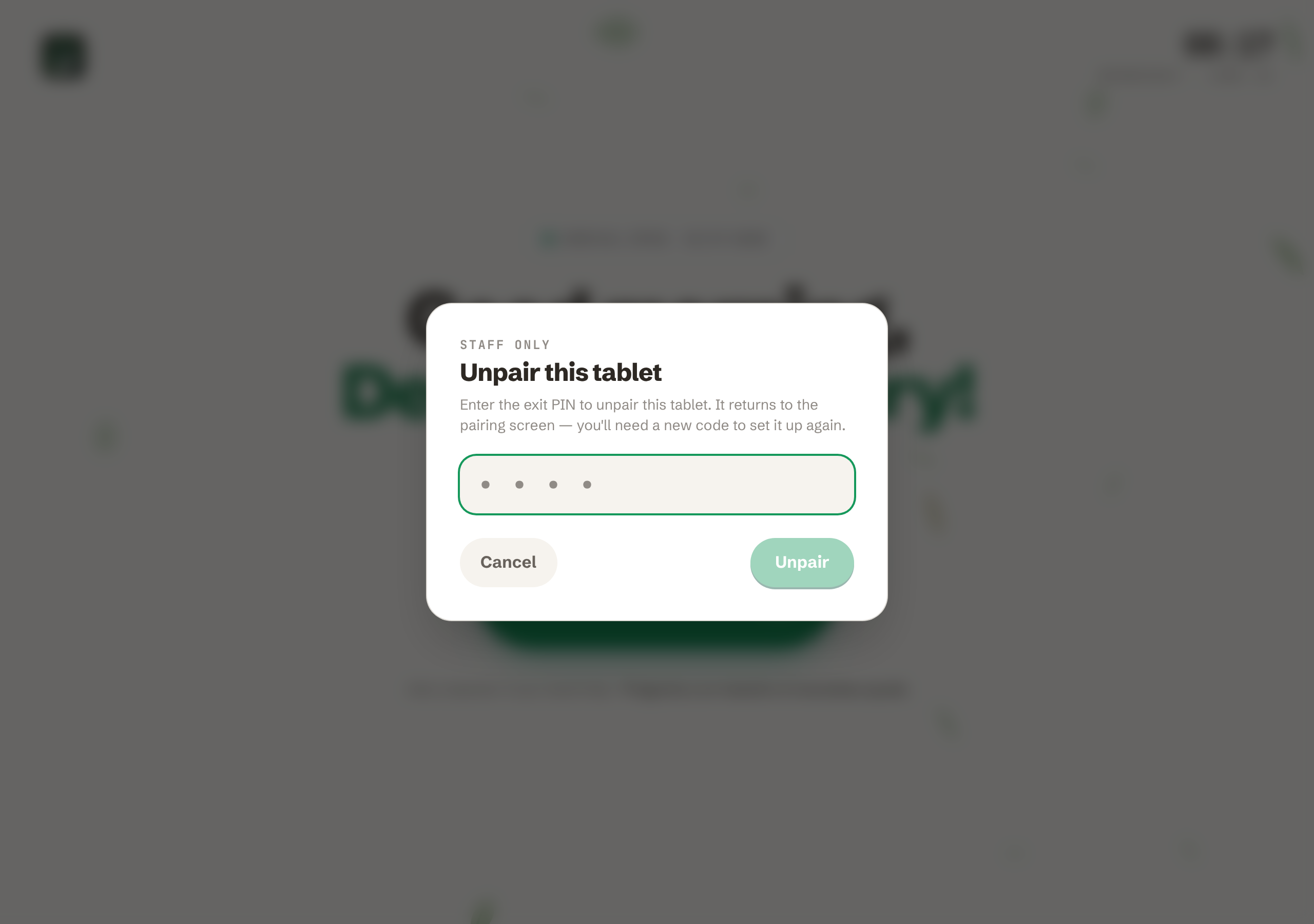
- • Unpairing a tablet: tap the logo on the tablet’s home screen and enter the exit PIN — the tablet unpairs and returns to the pairing screen. You can also unpair from the screen’s ⋯ menu in the app
Editing, unpairing, and removing
From a screen row's ⋯ menu you can:
- • Edit — change the name, groups, dismissal tags, greetings, or PIN
- • Unpair tablet — drop the tablet back to the pairing screen (use this when you move a tablet to a different door)
- • Delete screen — remove it entirely; any paired tablet returns to pairing
You can also unpair from the tablet itself: tap the logo on the home screen and enter the exit PIN. The tablet revokes its own access and returns to the pairing screen — handy when the tablet is at the door but the office isn't.
Re-pairing replaces the old tablet
Each screen has one active tablet at a time. Pairing a new tablet to a screen automatically unpairs the previous one — so to move a tablet, just pair the new one.
Tips for a smooth setup
- ✓ Name screens by location (“Front door”, “Gym entrance”) so the table stays readable as you grow
- ✓ Keep dismissal tags short — a handful of clear options (Car, Bus, After-care) is easier for young children than a long list
- ✓ Pick a memorable exit PIN staff can recall but children won’t guess
- ✓ Mount the tablet at child height near the door, and plug it in so it doesn’t sleep during arrival
- ✓ Try it yourself first — check in as a test student to see the greeting, dismissal step, and celebration before the children arrive